DPC3848V How to change your Wi-Fi network name

Changing your network name

The name of your WiFi network is called the "SSID", which is used to identify your network from other WiFi networks that are in the range of your device. To change the name of your WiFi network so that you can easily identify it, you will need to sign in to the Cisco configuration page which will allow you to configure various settings related to your WiFi network.

To change your network name:

  1. Sign in to the Cisco configuration page
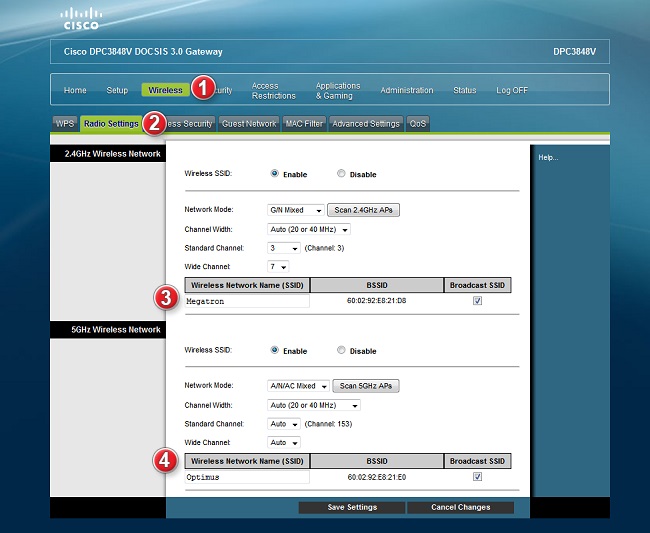
  2. Select Wireless from the top navigation bar, and then choose Radio Settings
  3. Underneath Wireless Network Name (SSID) you can enter in your preferred WiFi network name
  4. If you would like to change the network name for your 5 GHz network, simply perform these steps for the second listed network
  5. Select Save Settings to save your changes
  • 0 Utilizadores acharam útil
Esta resposta foi útil?

Artigos Relacionados

 DPC3848V How to perform a factory reset

How to perform a pinhole reset If you need to restore your modem to default settings you can do...

 DPC3848V How to change WI-FI username and password

Follow these steps to change the password of your Cisco 3848V modem. Visit the Admin Console...

 DPC3848V How to block websites with Access restrictions

  You can block websites set times and dates by using the website access restrictions. Here are...

 DPC3848V how to do a Default login to the web interface

DPC3848v login To login to Cisco DPC3848V Router, Open your web browser and type the default IP...

 DPC3848V How to reset your restore default Wi-Fi password

Restore default password If you would like to restore the default password, you can perform a...