DPC3848V How to change WI-FI username and password

Follow these steps to change the password of your Cisco 3848V modem.

  1. Visit the Admin Console by visiting 192.168.0.1 in your Internet browser.

    Cisco Admin Console.png
  2. To Log in just click login there is no username or password
  3. Click Login.
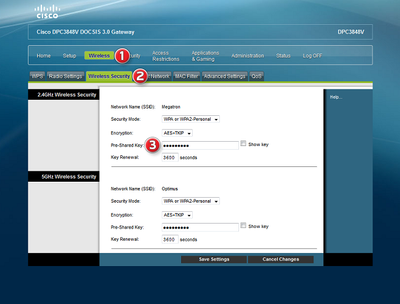
  4. Click Wireless at the top of the page.
  5. Click the Wireless Security tab.
  6. Under 2.4GHz Wireless Security, type a new password for the network in the Pre-Shared Key field.
  7. Under 5GHz Wireless Security, type a new password for the network in the Pre-Shared Key field.
  8. Click Save Settings before closing the window.

 

  • 0 Users Found This Useful
Was this answer helpful?

Related Articles

 DPC3848V How to perform a factory reset

How to perform a pinhole reset If you need to restore your modem to default settings you can do...

 DPC3848V How to change your Wi-Fi network name

Changing your network name The name of your WiFi network is called the "SSID", which is used to...

 DPC3848V How to block websites with Access restrictions

  You can block websites set times and dates by using the website access restrictions. Here are...

 DPC3848V how to do a Default login to the web interface

DPC3848v login To login to Cisco DPC3848V Router, Open your web browser and type the default IP...

 DPC3848V How to reset your restore default Wi-Fi password

Restore default password If you would like to restore the default password, you can perform a...